FatcaNilReporter is a Windows desktop tool for building FATCA nil-reporting payloads and IDES-style packages for funds. This guide describes setup, the main window, and each workflow. For the ZIP download, see
Products.
Overview
The application reads reporting-entity data from a fixed Excel workbook (fatca_reporting_entity.xlsx) placed next to the executable. You choose a GIIN and entity row, then generate or revise FATCA XML payloads and package them for your submission process. Outputs are written under a data folder, organized by GIIN and job.
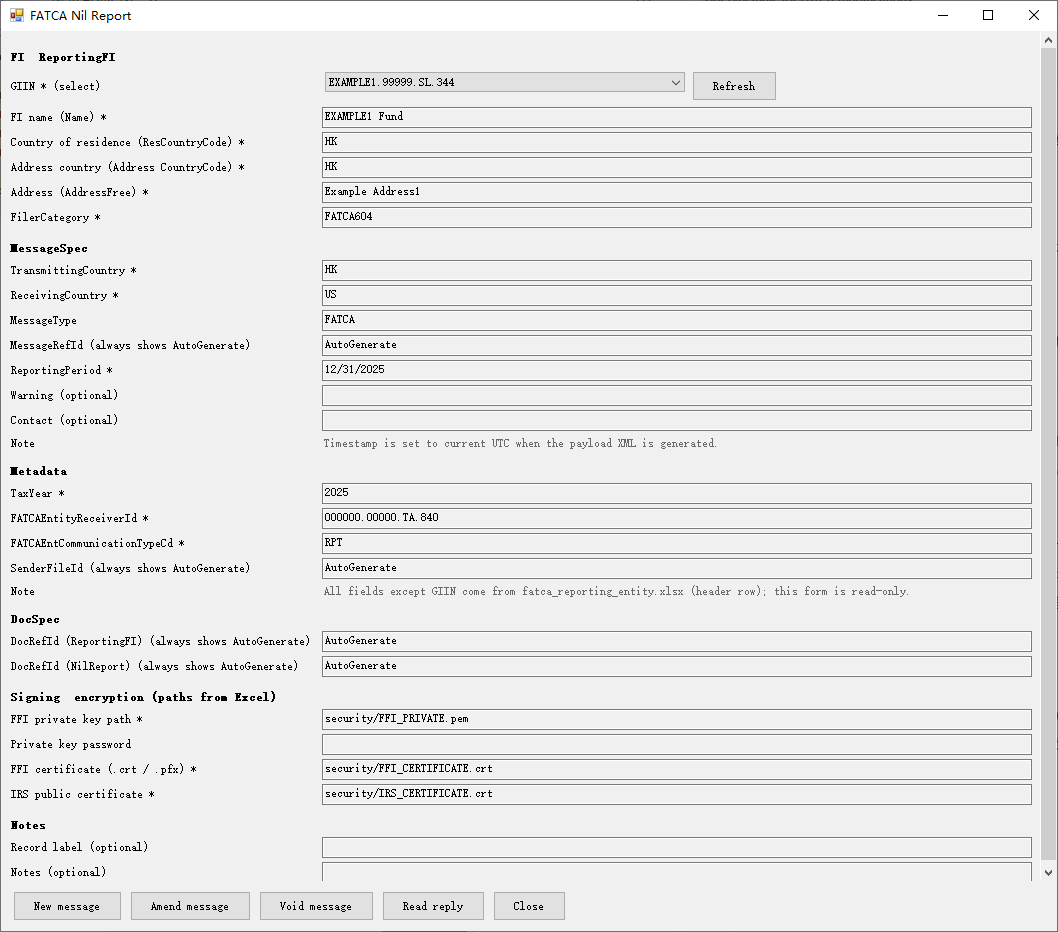
Main window: select a GIIN, review entity details, then run a workflow.
Requirements
OS: Windows (64-bit recommended).
Runtime: .NET Framework 4.7.2 is required; the published folder includes dependencies under lib.
Data: Prepare fatca_reporting_entity.xlsx according to your process; the app expects it in the same folder as FatcaNilReporter.exe.
Installation
Download FatcaNilReporter-1.0.1.zip from the Products page.
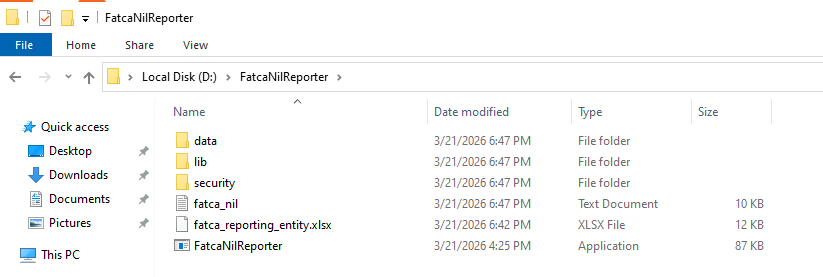
Extract the archive to a folder of your choice (for example D:\FatcaNilReporter).
Copy your fatca_reporting_entity.xlsx next to FatcaNilReporter.exe.
Run FatcaNilReporter.exe. If the workbook is missing, the app shows an error and exits.
Typical install folder: executable, lib dependencies, and the Excel workbook beside the exe.
Main window
After the workbook loads, use the GIIN drop-down to select a reporting entity. Read-only fields show address, reporting period, and other attributes from the sheet. DocRef/Message identifiers may show as auto-generated placeholders until you run a workflow.
Actions (labels may vary slightly by build):
New message — build a new nil-report payload and continue to signing / packaging.
Amend message — point to an existing job folder that contains a previously generated unsigned payload; supply correction references and generate an amended payload.
Void message — similar folder selection, for void-style follow-up per your process.
Read IRS reply — select an IRS reply ZIP to unpack and review in the app.
Workflows
New message
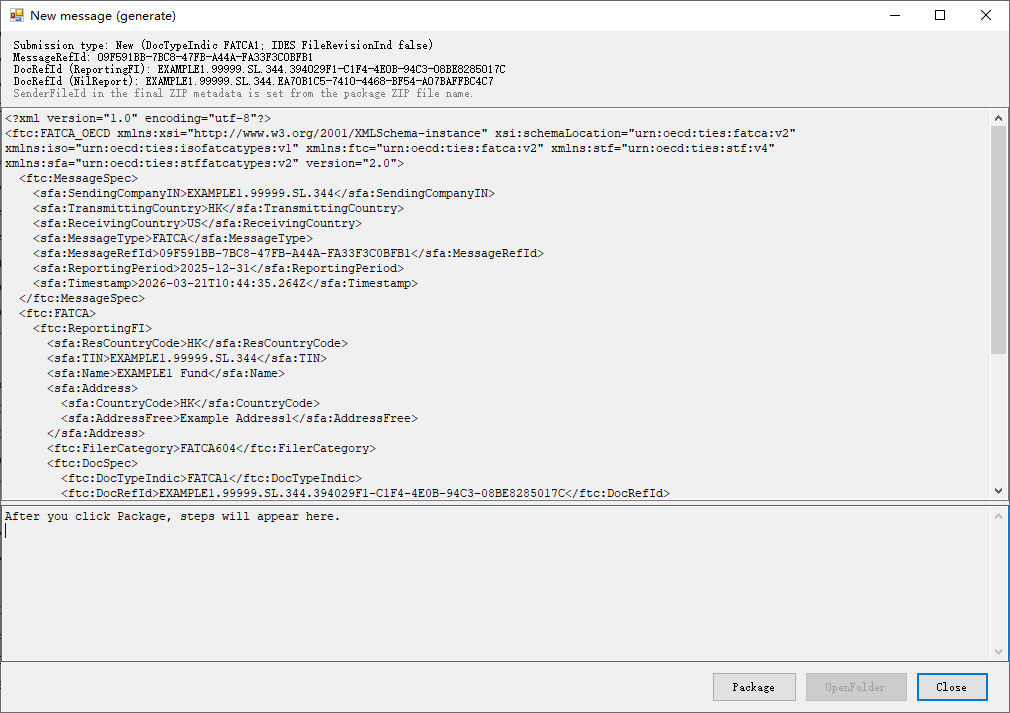
Select the correct GIIN and entity, then start New message. The app opens a generate dialog where you can review XML, then produce signed artifacts and the final IDES ZIP using the on-screen steps.
Generate step: review payload XML and complete signing / ZIP creation.
Amend and void
For Amend or Void, the app asks for the job folder that contains the relevant unsigned payload XML from a prior run. The folder picker starts under data\<GIIN> when that directory exists. The tool reads MessageRefId and DocRefId values from that file to populate correction fields—ensure you select the folder that matches the submission you intend to correct.
IRS reply
Use Read IRS reply to choose a reply ZIP from IRS; the app can unpack and present contents for review.
Output files
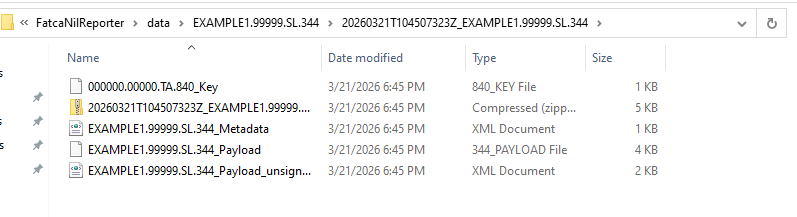
Packaged jobs are stored under data\<GIIN>\<job folder>. Each job folder typically includes the payload (unsigned/signed as applicable), metadata XML, key material, and the final ZIP named for submission. Keep a clear mapping between each ZIP you transmit and its job folder for traceability.
Example: data → GIIN → job folder with payload and metadata.
Disclaimer
Disclaimer. FatcaNilReporter is a software tool only. It does not provide legal, tax, or regulatory advice. You are responsible for validating outputs against applicable rules, schemas, and your internal policies. Use at your own risk.